Initial drive set up:
- Transfer the CSV File for the Axis you want to configure to the DRVFIX Folder on the APC or PPC
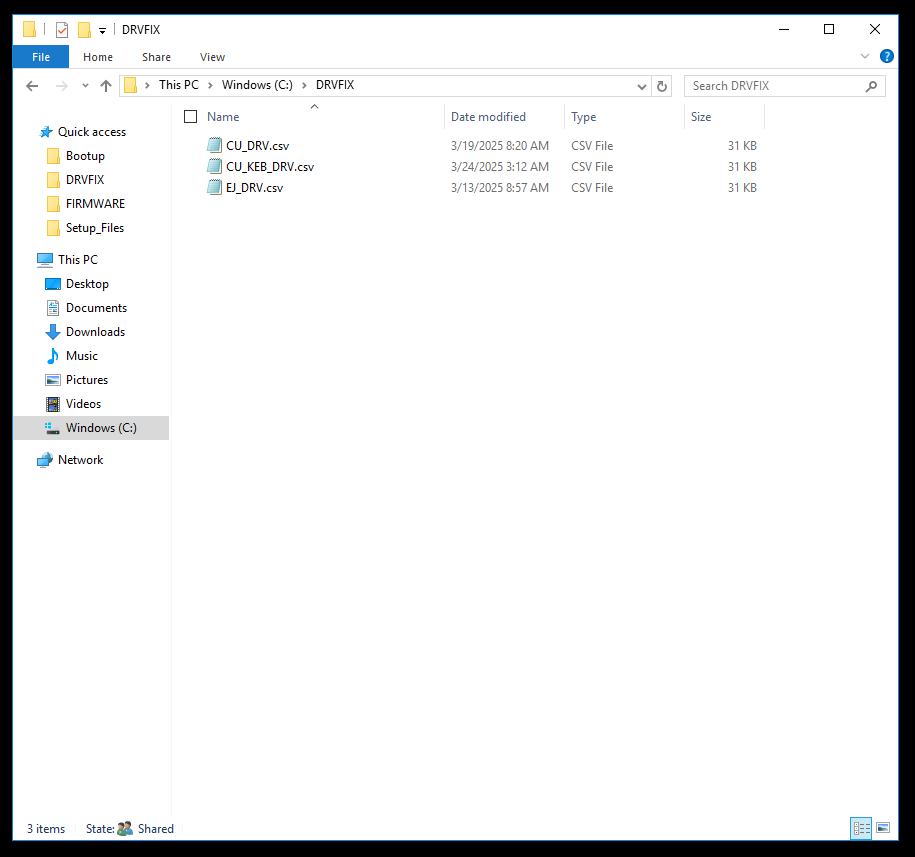
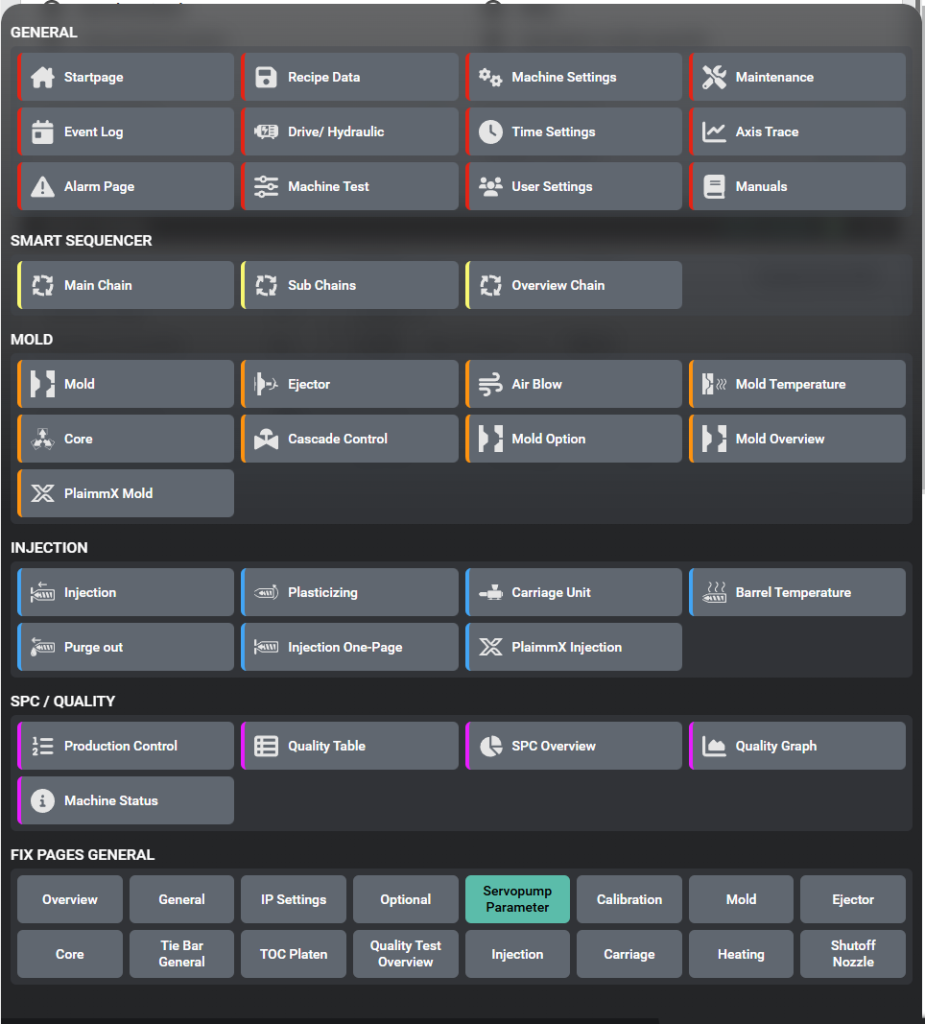
The csv-File contains a List of Parameters, the values will get loaded from this List and written to the Drive. - In the HMI Navigate to Servopump Parameter Fixpage
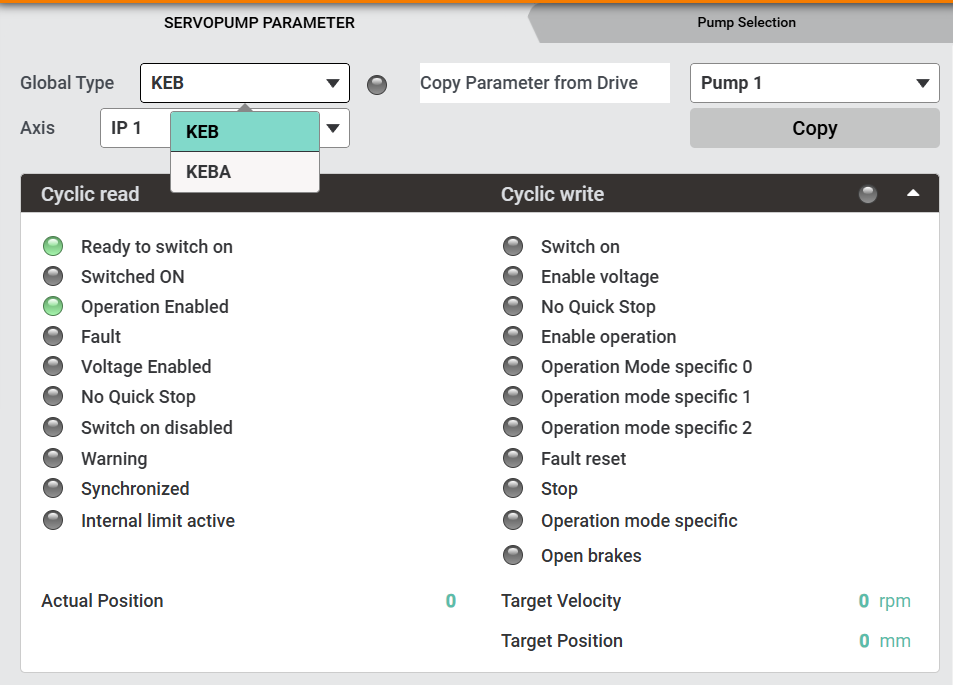
- Select the correct drive manufacturer from the Dropdown
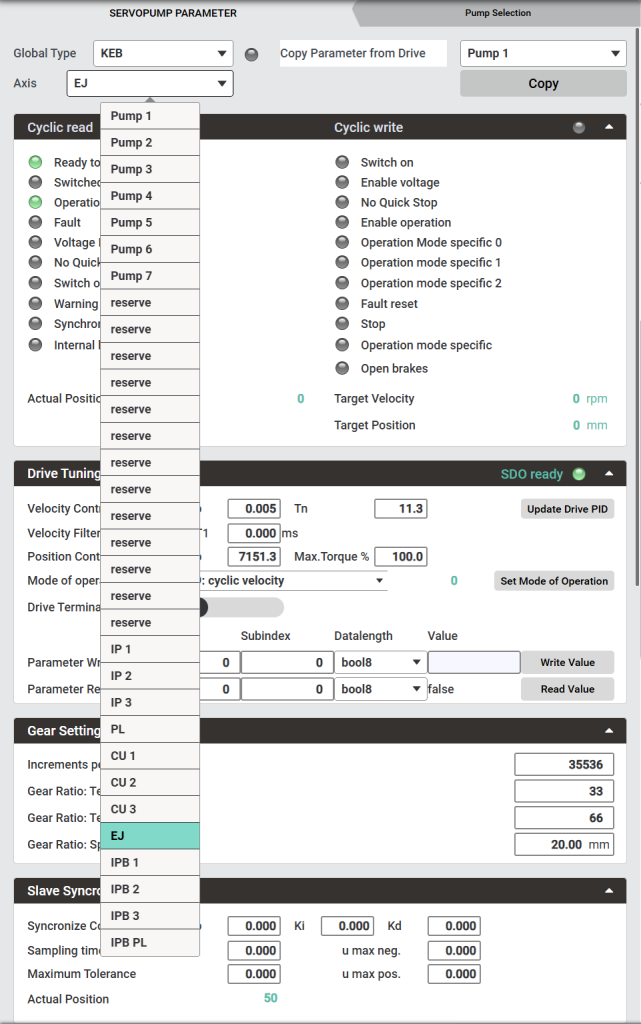
- Select the correct Axis to be configured
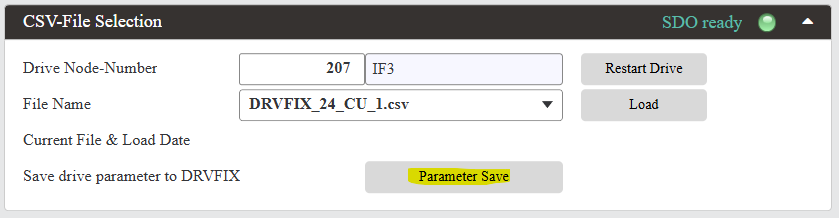
- In the Box CSV-File Selection make sure the right Device-Node-Number and Device-Node-String are displayed
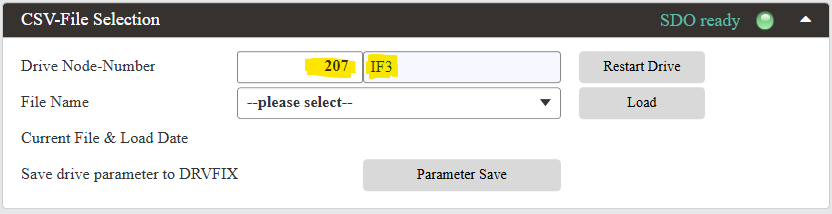
- Select the Configuration-File for the right Axis you want to set up
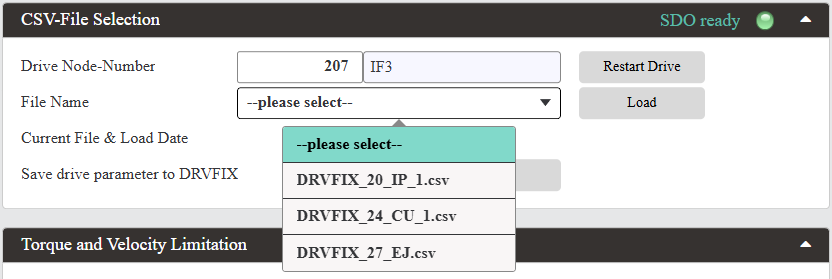
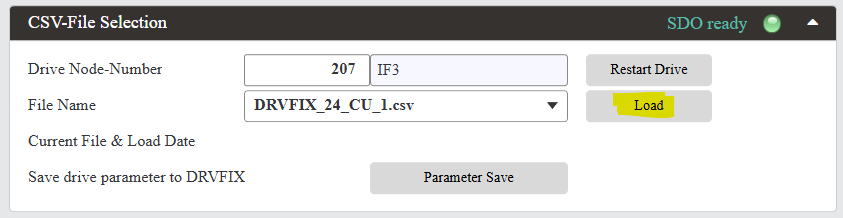
- Press load to write the selected csv configuration file to the drive
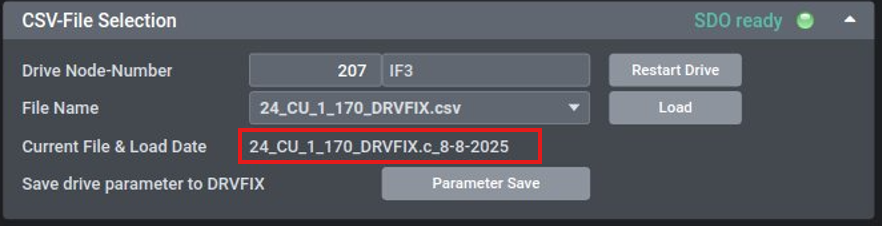
- After successful operation you should see the Filename you loaded next to Current File & Load Date
- if the steps above are finished, restart the maschine. After the restart make sure the belts of the axis are not connected and scroll down to the Encoder Offset Box
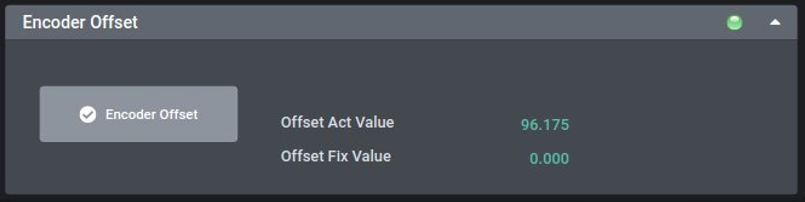
- Press the button for automatic encoder detection
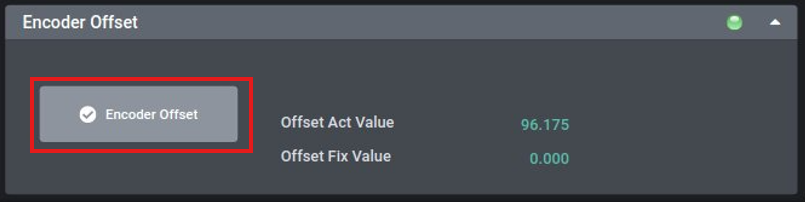
- Now the axis is ready and you can move to the next
- To Save the Current Drive parameters to a CSV File it is neccessary to have the Parameterset.csv File in the DRVFIX Folder
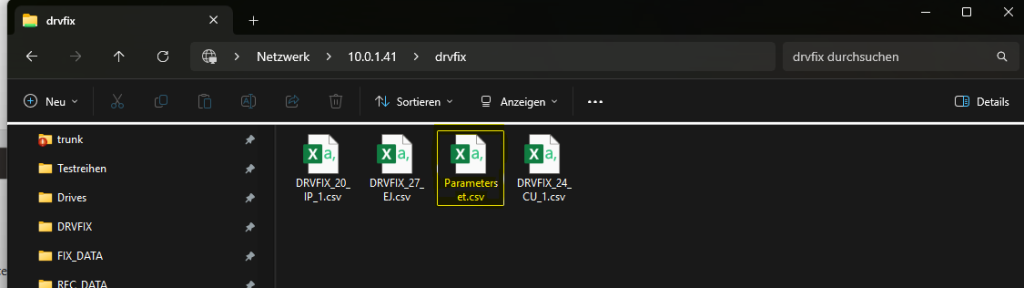
The following link contains the most recent Parameterset.csv file:
https://ai.woojin.help/wp-content/uploads/2025/04/Parameterset.csv - Press save to store the current drive configuration, the Name of the csv File will be automatically generated depending on the Axis selected in the Dropdown at the top of the Page
Currently Used Parameterset.csv File for saving DRVFIX Data:
Parameterlist for KEBA Drives including a short description for every parameter:


